Run on a server with a locked context
Read Production on a server with a server token, an IP allowlist, and machine approval.
Sep 26, 2026 · 4 min read
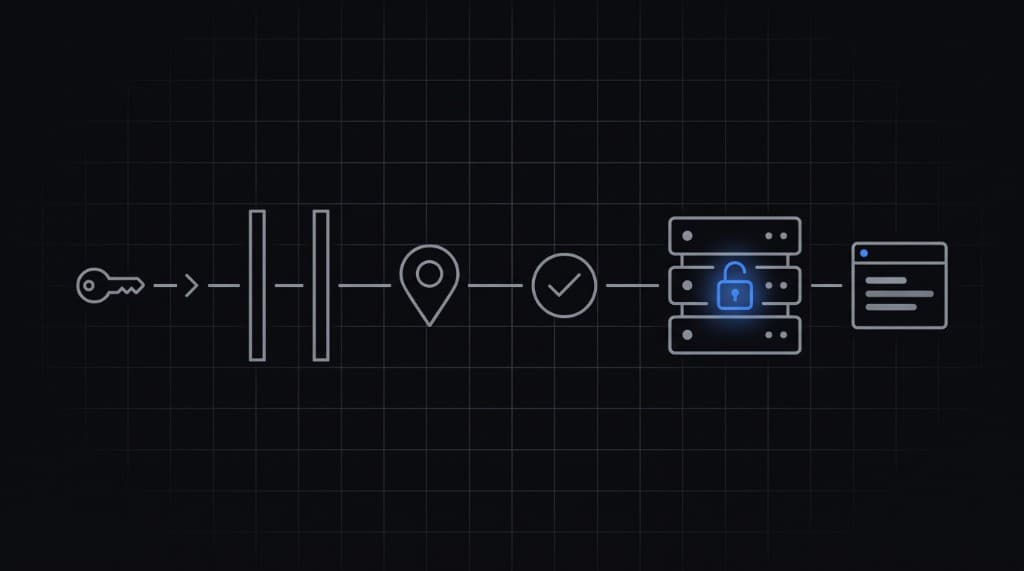
What locked means
- The CLI is read-only. Set values in the dashboard.
- Only a server token bound to that context can read it.
- Reads come from an allowlisted IP or CIDR.
- Each new machine needs approval unless you trust it.
1. Set values in the dashboard
Open the project, pick Production in the sidebar, then Add variable or Import. Values are encrypted in the browser.
2. Create a server token
On the CLI page, create a server token for the locked context. Add the server's IP or CIDR. The token is shown once. Store it in your server's environment as GETMYENV_TOKEN.
3. Run
export GETMYENV_TOKEN=...          # server token from the dashboard
export GETMYENV_MACHINE_LABEL=web-1 # name shown on the Requests page
npx getmyenv run -- node server.js
With a server token, run uses the token's context. The Vault password is asked on each run for locked contexts. Without a terminal, pipe it with --vault-password-stdin:
printf %s "$VAULT_PASSWORD" | npx getmyenv run --vault-password-stdin -- node server.jsIn containers, set GETMYENV_CONFIG_DIR to a persistent volume. The machine key lives there, so a trusted machine stays trusted across restarts.
4. Approve the machine
The first run from a new machine creates a request, prints the Requests page link, and waits up to 5 minutes. Approve it in the dashboard. Approval gives that machine a one-time grant for 1 hour.
Trust the machine on Requests to skip approval next time. Untrust or revoke it there at any time.